English
  Español
  Português
After capturing images with the device, you should assign them to an existing patient or create a new profile. If you need to edit the information of a patient who is already assigned to an exam on the Eyer, follow these steps:
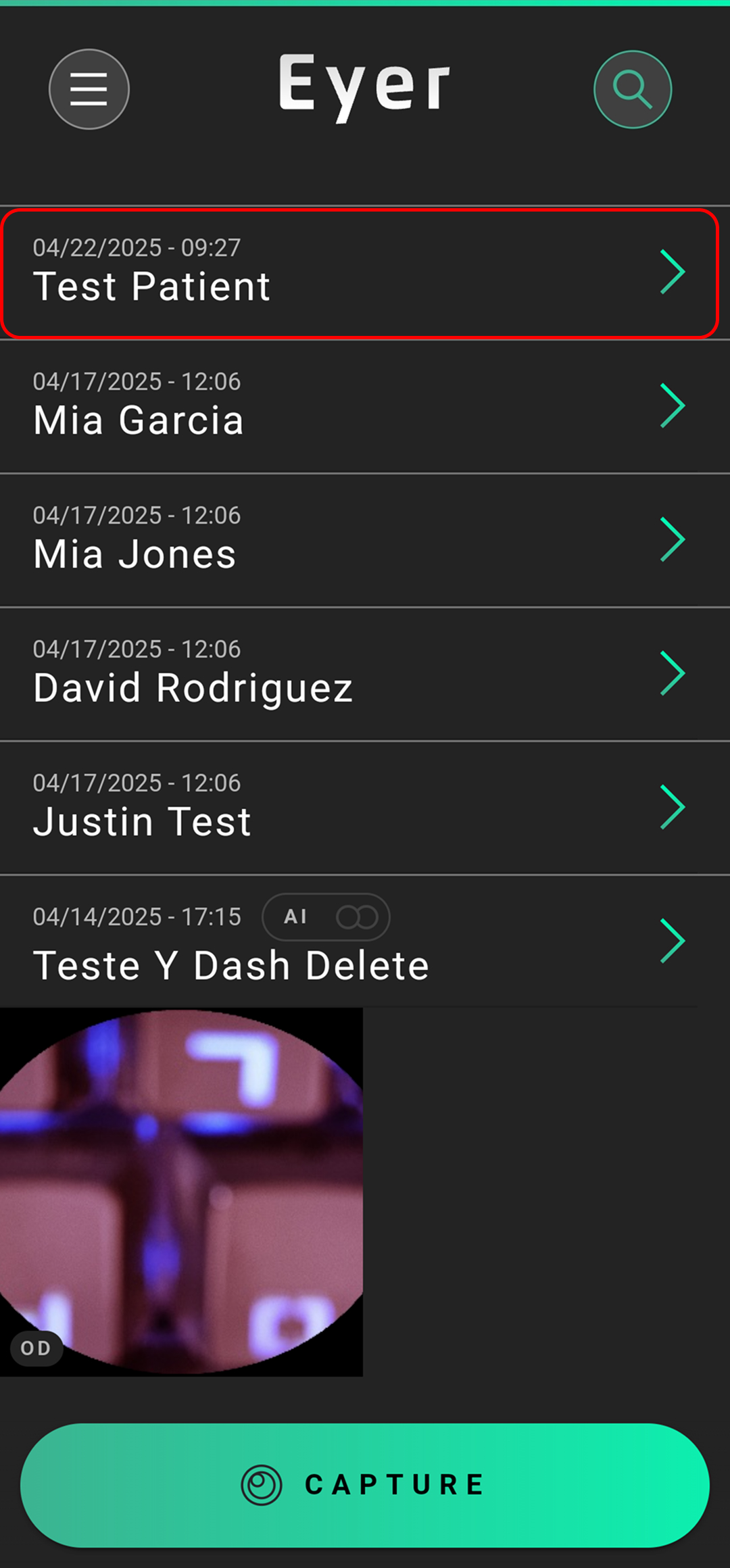
- Access the exam list: Find the specific exam of the patient whose information you want to change.
- Open the details: Tap the green arrow in the corner of the screen next to that exam.
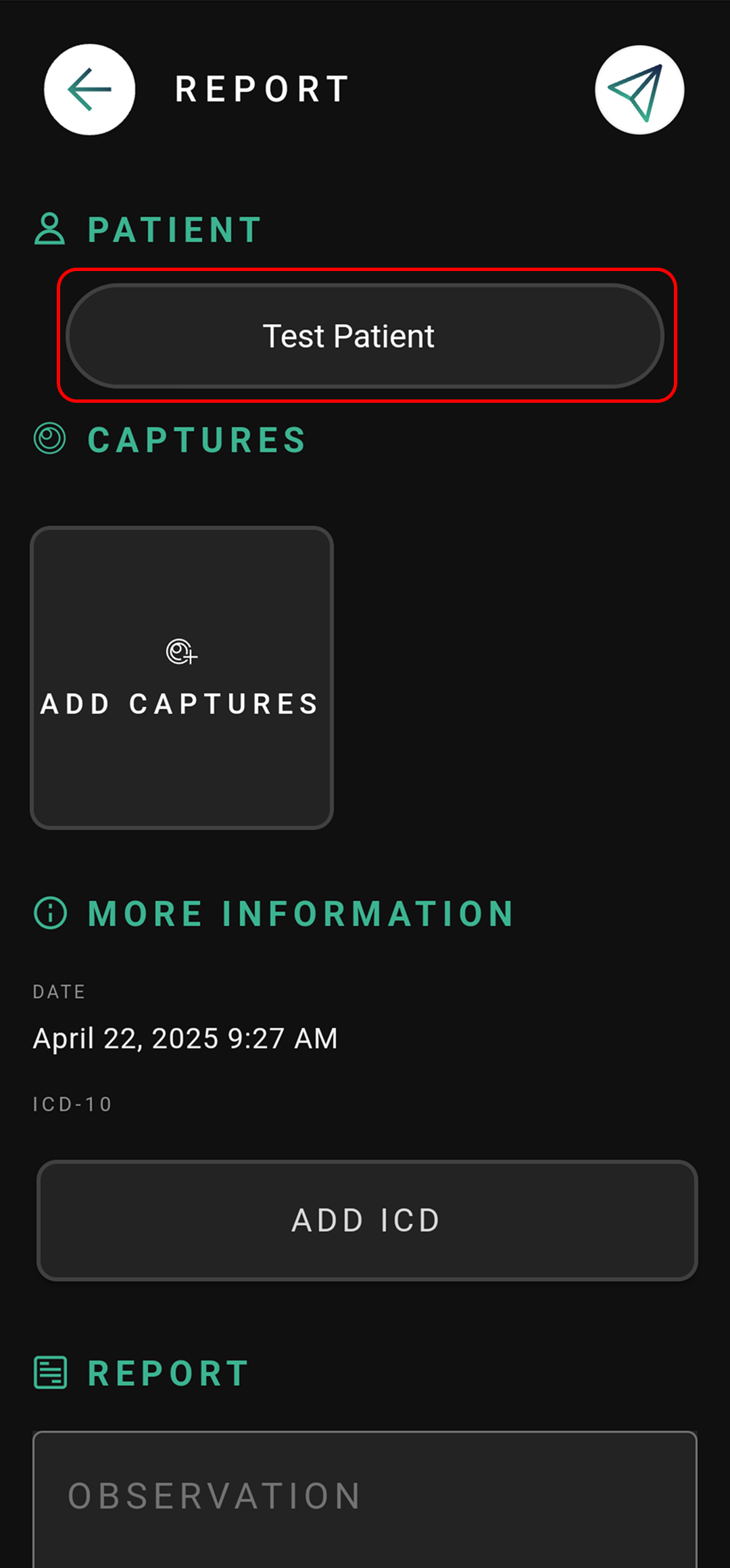
- Enter the reports screen: You will be taken to the exam’s report page.
- Select the patient: Tap directly on the patient’s name.
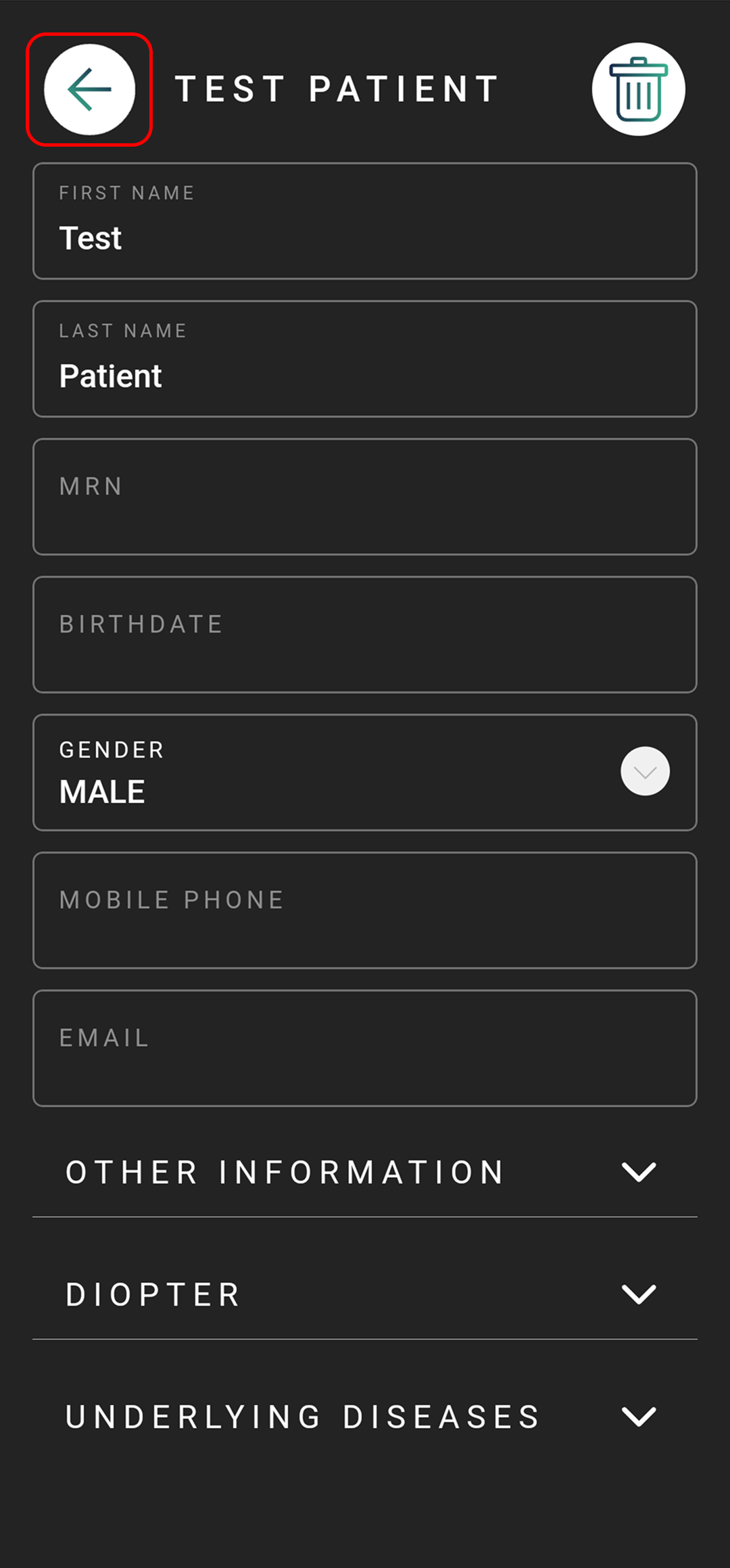
- Edit the details: A screen with the patient’s registration data will open. Make the necessary changes and save.
⚠️ Important: By following this procedure, you are not creating a new patient profile, but editing the information of an already registered patient. If this patient has other exams linked to their profile, the changes made will automatically apply to all exams associated with them.