English
  Español
  Português
You can easily change your settings to make the Eyer perfect for your daily use. In the System Preferences menu, you can turn features on or off and pick what works best for you. To find these settings, just follow these simple steps:
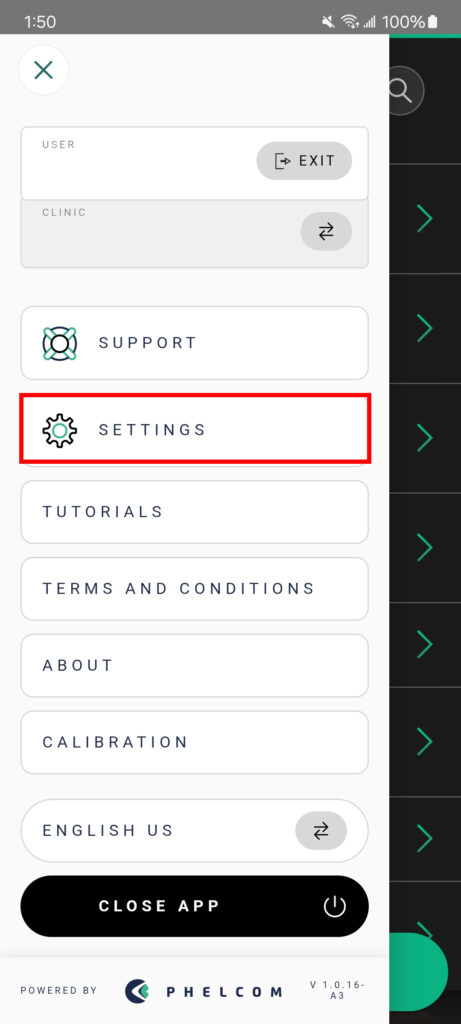
- Click the Menu icon (top left).
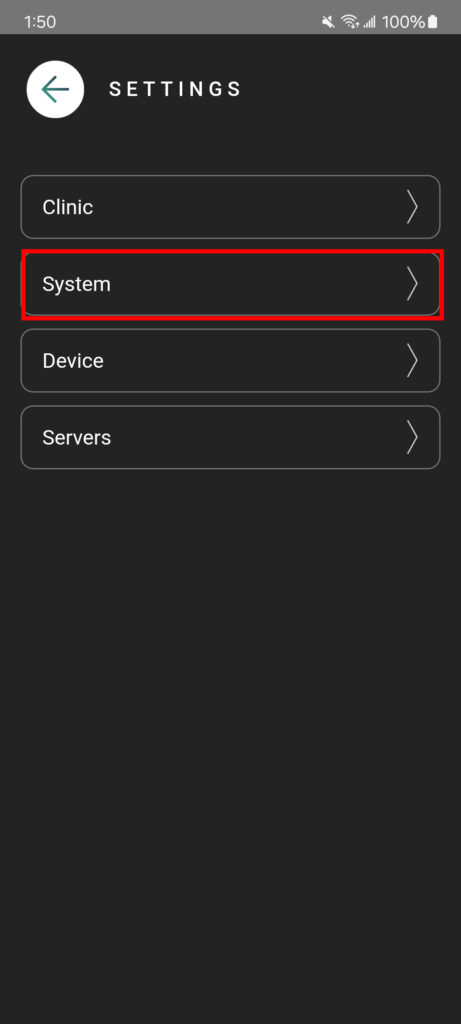
- Click on Settings.
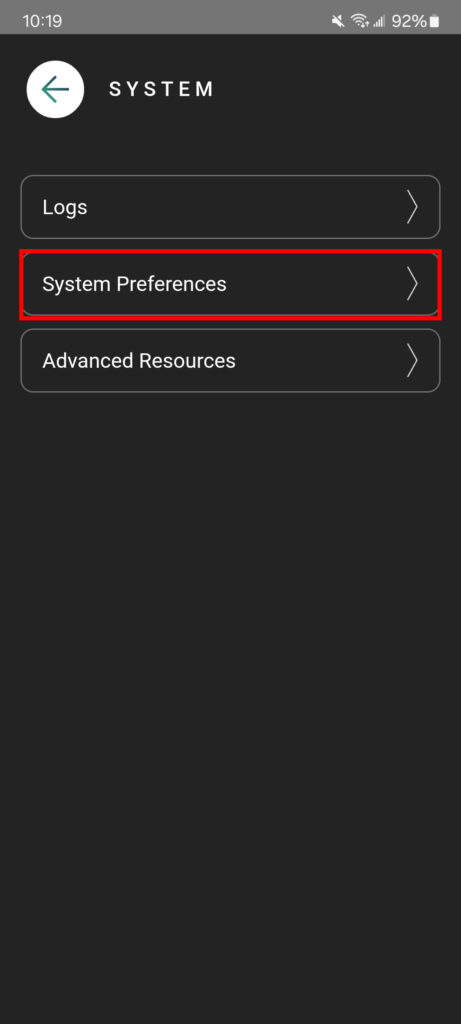
- Go to System.
- Select System Preferences.
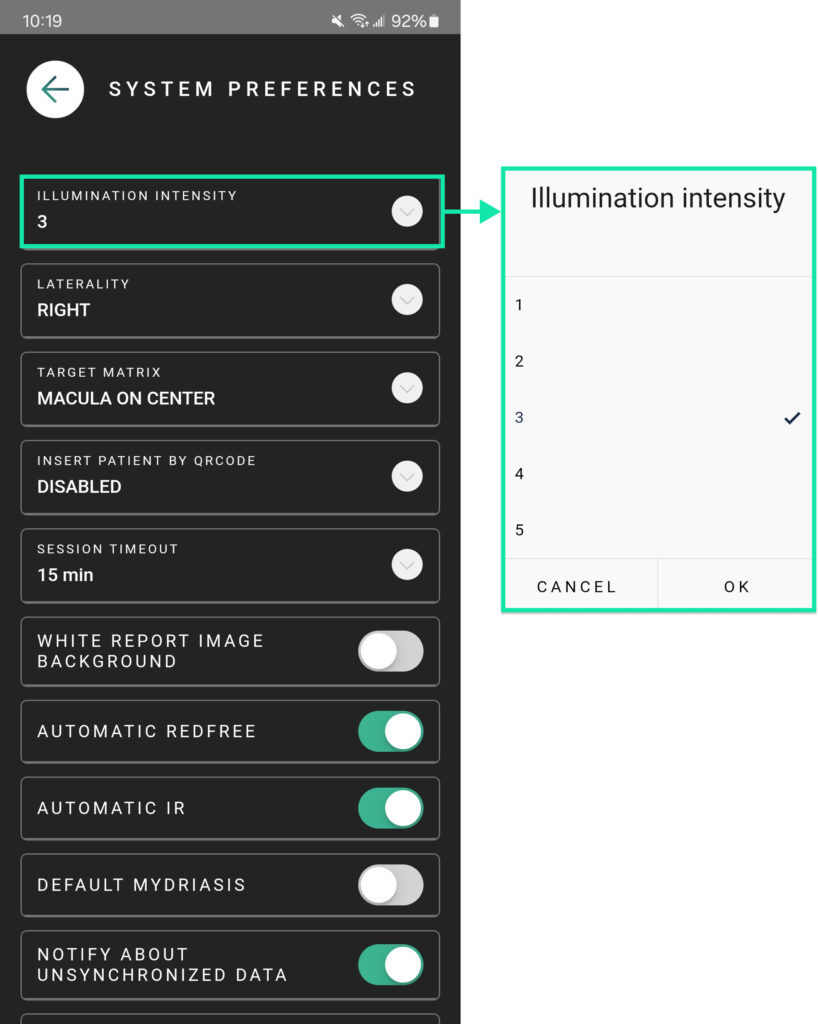
ILLUMINATION INTENSITY
By default, the light intensity is set to 3. However, you can easily change this to better fit your patients. You can set a new standard brightness for your photos by turning the flash up or down.
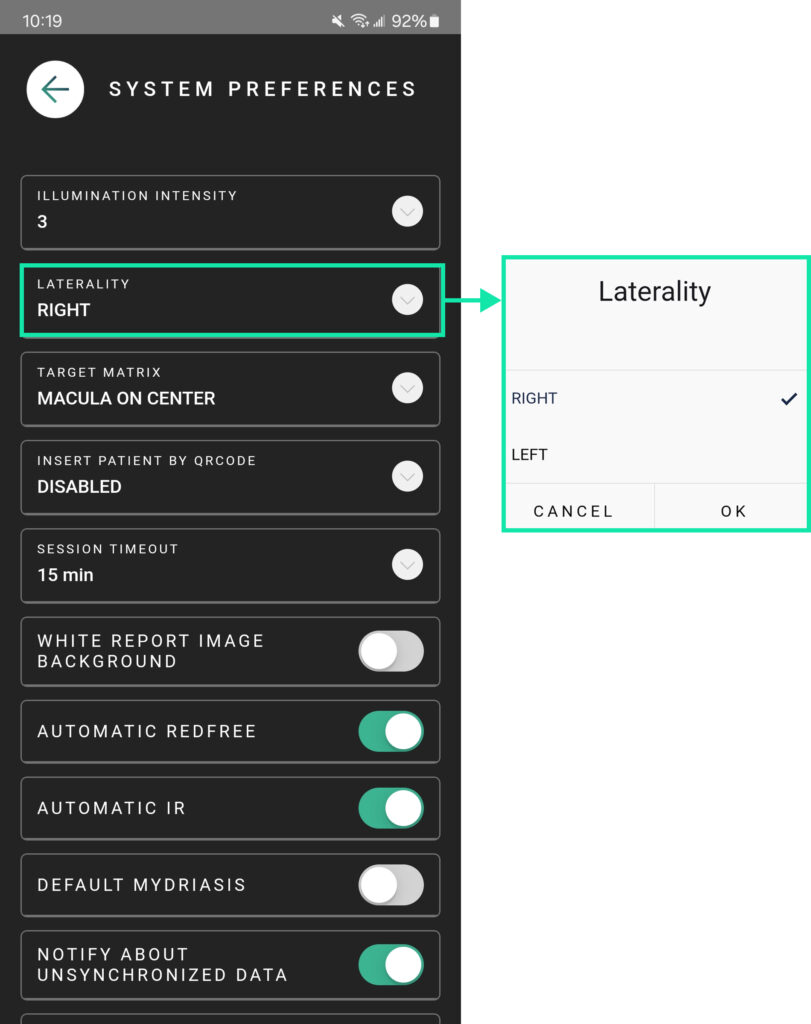
LATERALITY
By default, the camera starts with the Right Eye. This means every time you start a new exam, it will be ready to perform in the right side. If you prefer to start with the Left Eye, you can change it. Just pick your preferred side to set it as the new starting point for every exam.
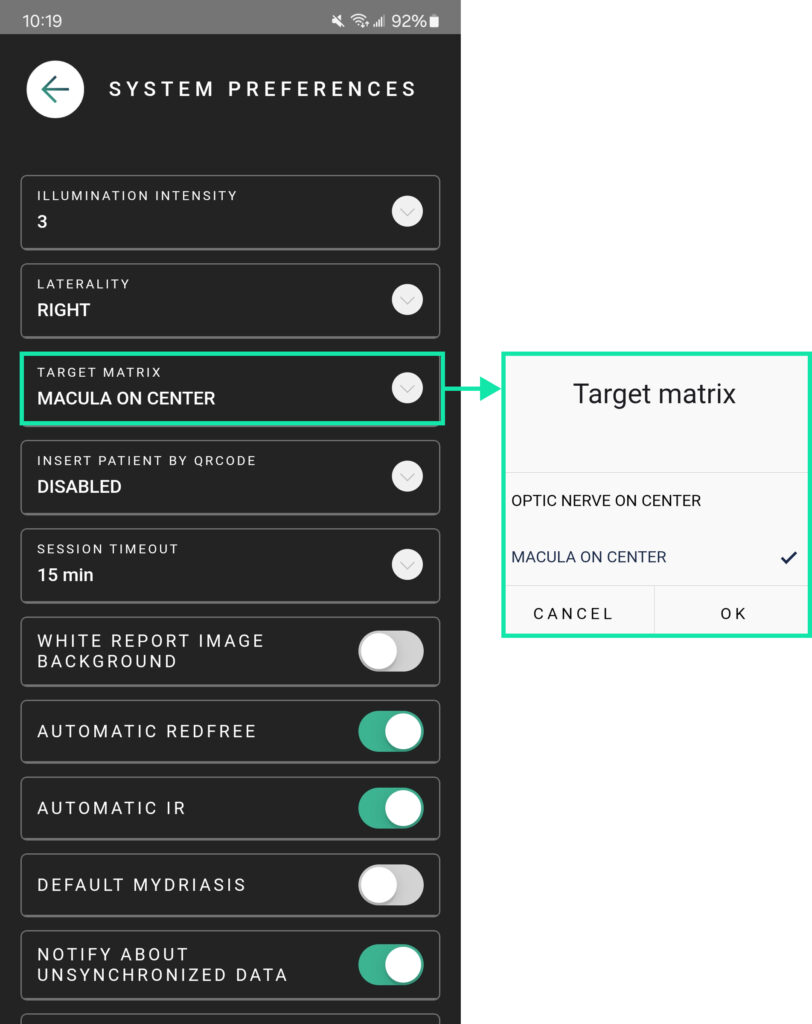
TARGET MATRIX
You can choose which focus point the camera uses when it starts. By default, it is set to “MACULA OM CENTER“. If you prefer, you can change it here to start with the “OPTIC NERVE ON CENTER” instead.
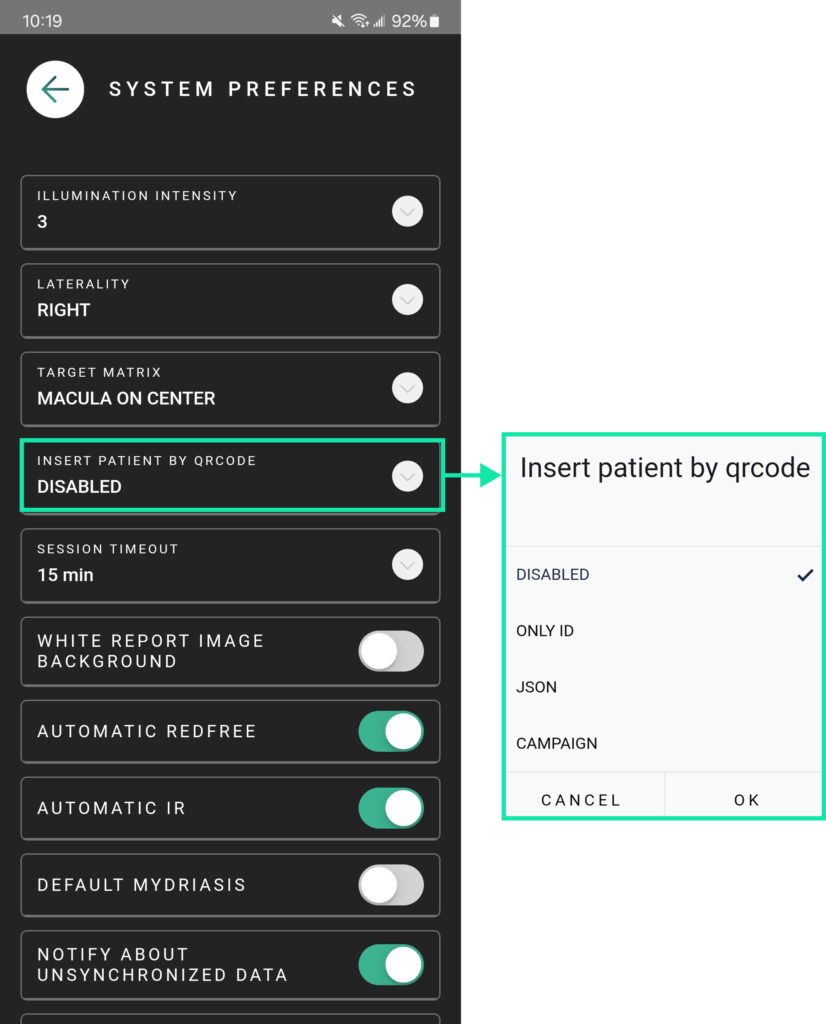
INSERT PATIENT BY QRCode
By default, this feature is turned off. It allows you to add new patients by scanning a QR Code. This option is usually for clinics with a very high number of patients. If you need to use this, please contact our support team. They will help you turn it on and show you how it works.
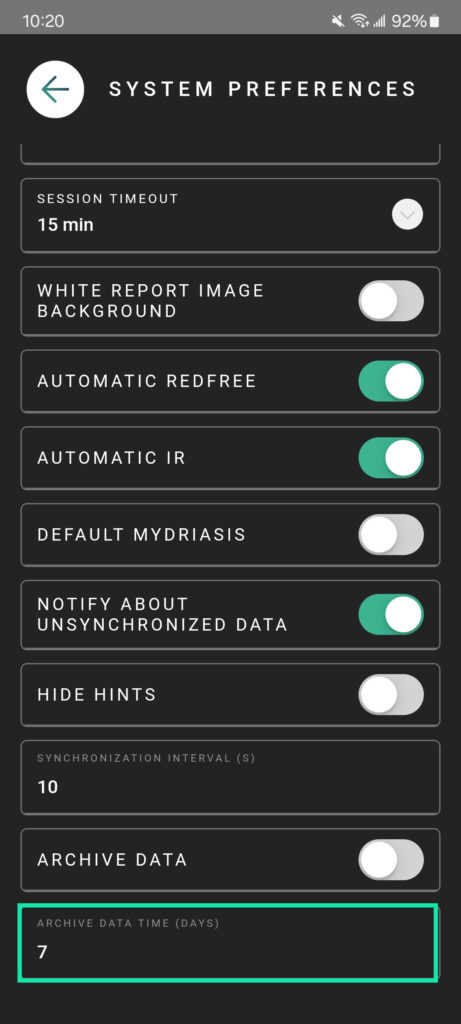
SESSION TIMEOUT
This setting controls how long the device stays logged in when you are not using it. By default, it is set to 15 minutes. If you prefer a shorter or longer time, you can easily change it. After this time passes without use, you will need to log in again for security.
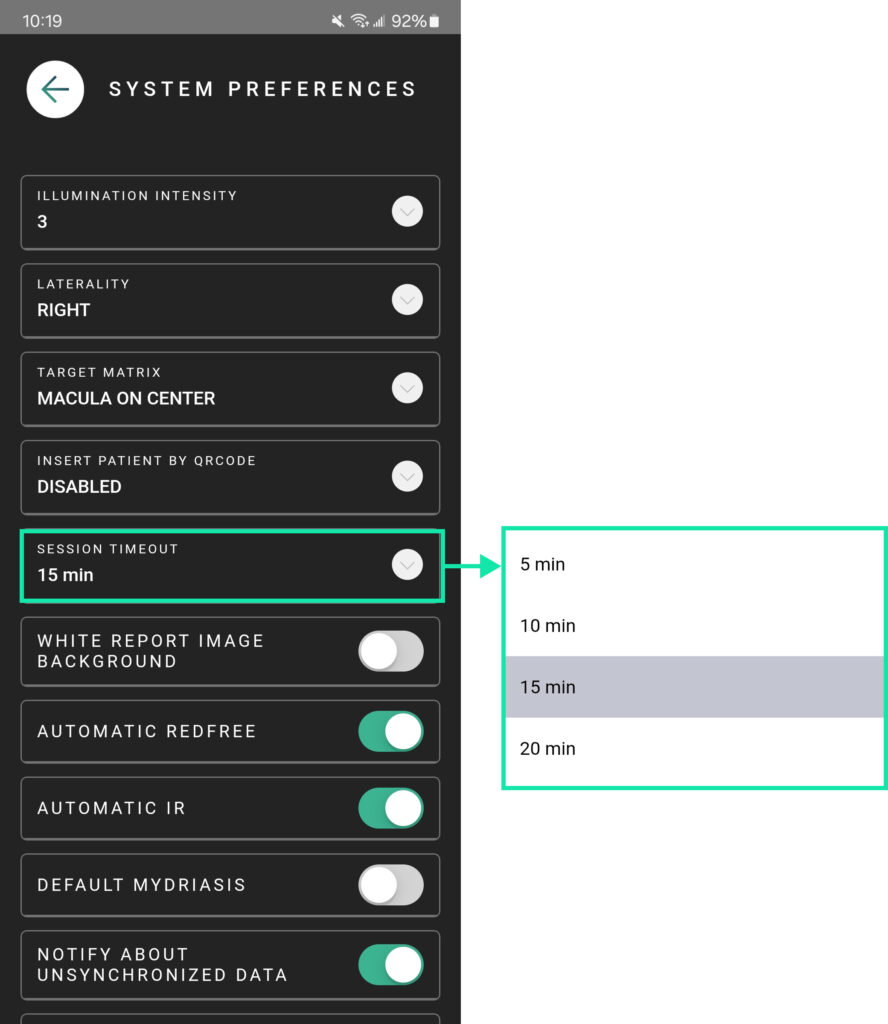
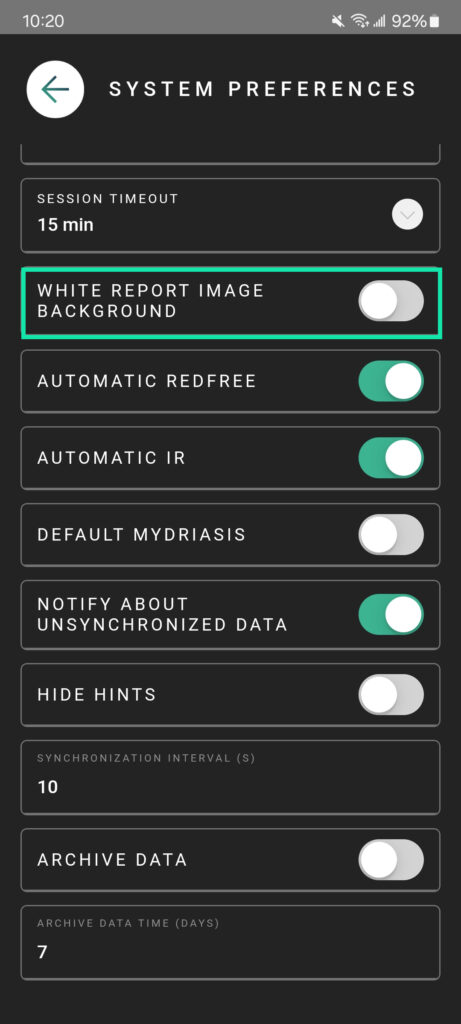
WHITE REPORT IMAGE BACKGROUND
Choose if you want your report images to have a white or black background.
Turned Off (Default): The images will have a white background.
Turned On: The images will have a black background.
Simply switch this setting to pick the look you prefer for your reports.
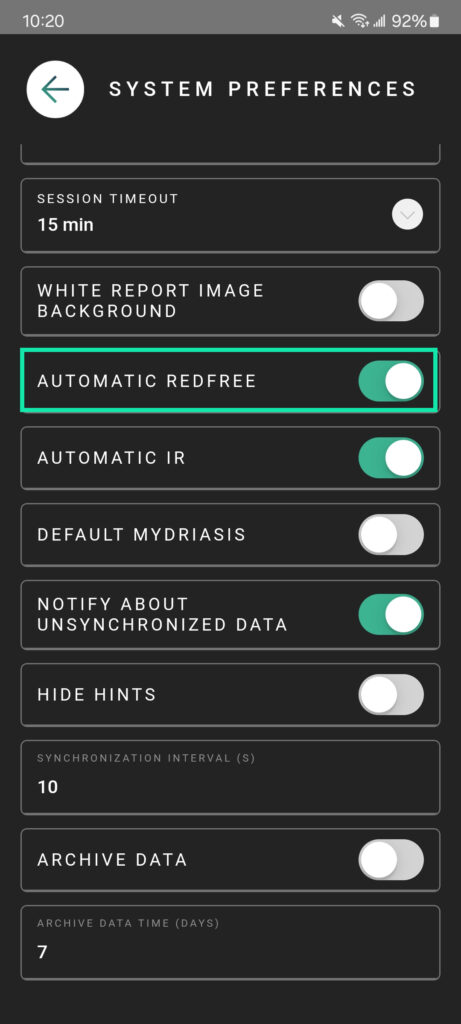
AUTOMATIC REDFREE
This setting defines if the camera always creates RedFree images when you take a color photo. By default, this is Turned On. This means the system will automatically generate a RedFree image every time you capture a photo. If you don’t need this, you can turn it off here.
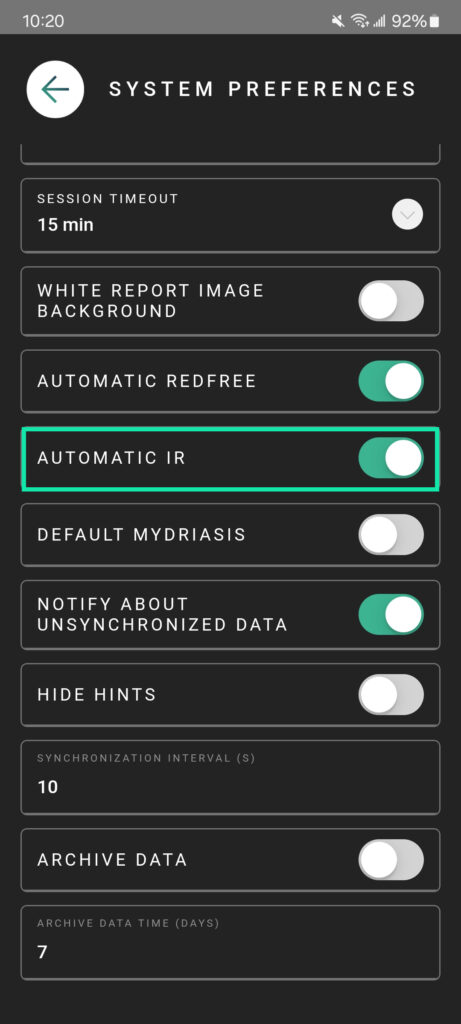
AUTOMATIC IR
This setting defines if the camera always creates Infrared (IR) images when you take a color photo. By default, this is Turned On. This means the system will automatically generate an IR image every time you capture a photo.
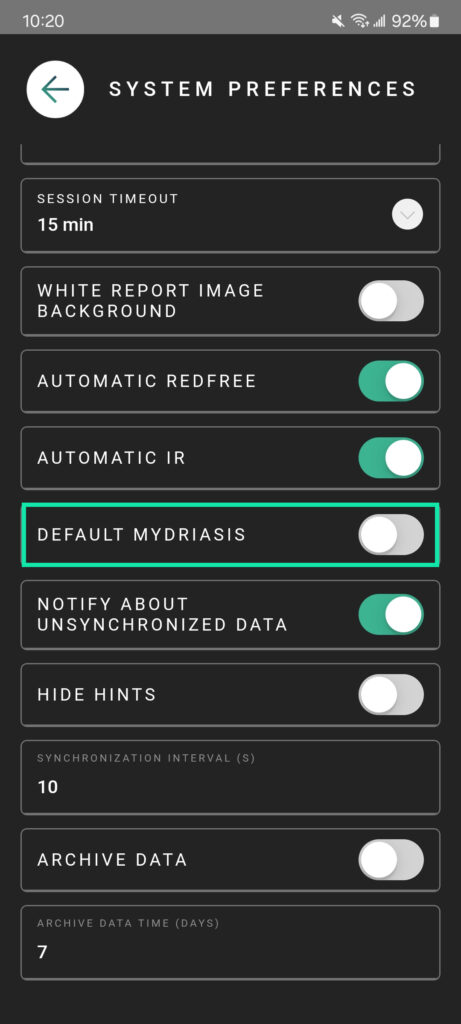
DEFAULTY MYDRIASIS
This setting defines if your exams are marked as Mydriasis (dilated pupil) by default. By default, this is Turned Off. If most of your patients have dilated pupils, you can turn this on to save time during your exams.
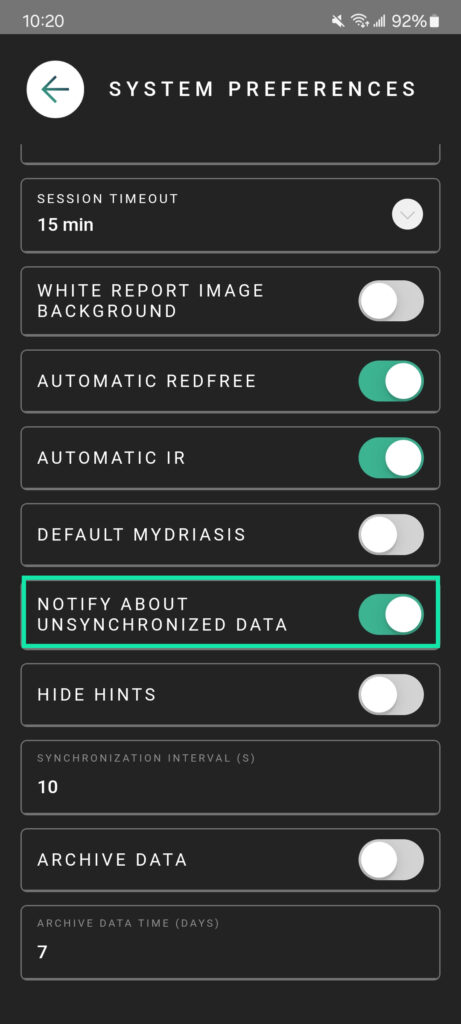
NOTIFY ABOUT UNSYNCHRONIZED DATA
The Eyer automatically syncs your photos with EyerCloud and your servers. A small message will quickly appear at the top of your exam list to show the sync status. We recommend keeping this Turned On so you can track your uploads. However, if you prefer not to see these messages, you can disable them here.
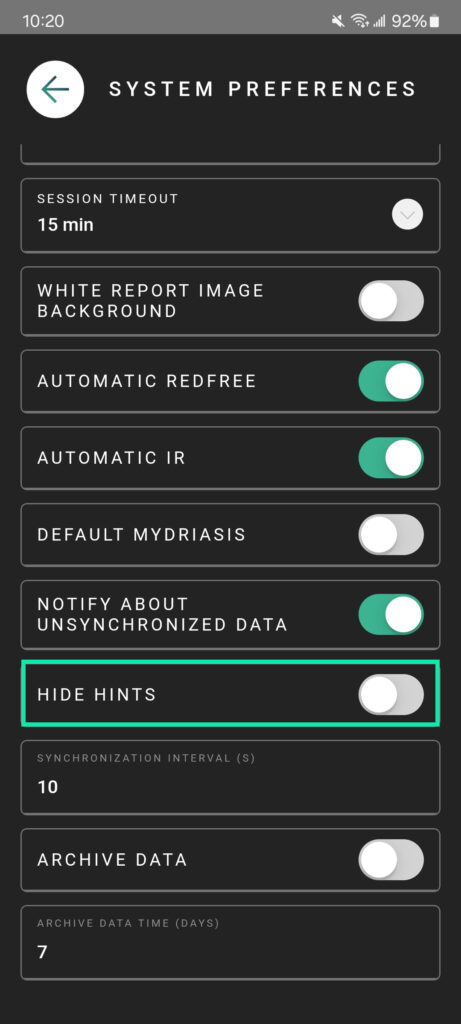
HIDE HINTS
When you take photos of the same eye using different focus points, the Eyer gives you helpful tips to create 3D images, panoramas, and progressions. These tips are there to help you get the best results. However, if you don’t want them to pop up anymore, simply turn this setting on to hide them, default: Tips are shown.
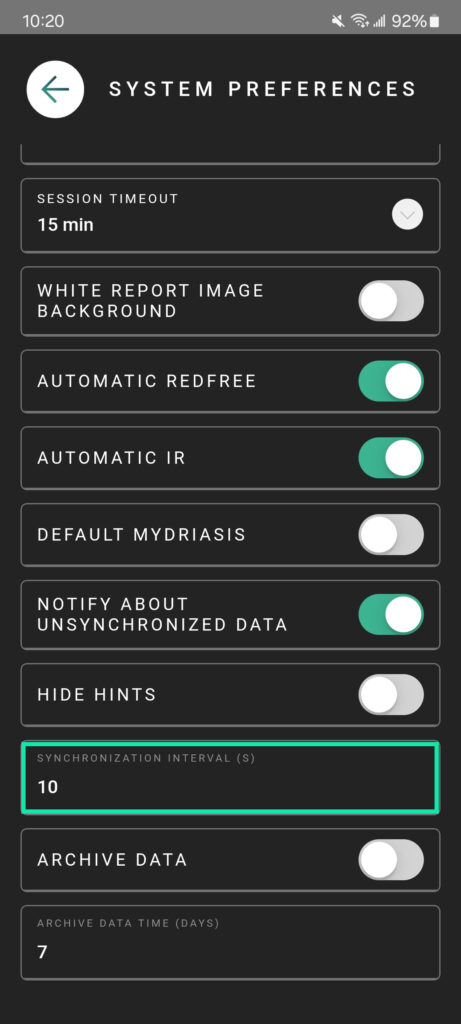
SYNCHRONIZATION INTERVAL (S)
This setting defines how often the device tries to sync your data. By default, it is set to 10s. This is the amount of time the system waits between each sync attempt. You can change this number if you want the device to try syncing more or less often.
ARCHIVE DATA
This setting defines if your data will be archived after it is successfully synced with the servers. By default: Turned Off, if you turn this on, the system will archive your files once they are safely saved in the cloud.
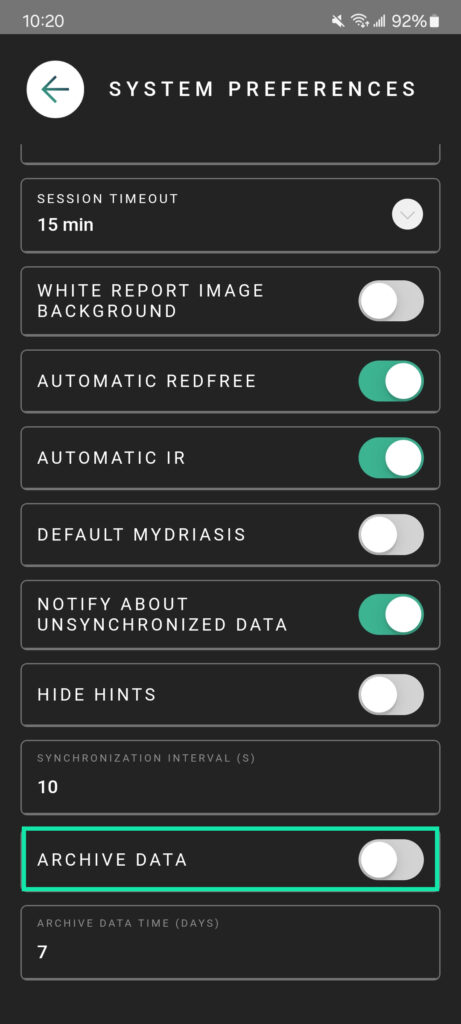
ARCHIVE DATA TIME (DAYS)
This setting defines how many days your data stays on the device before it is moved to the archives. The default: 7 days.
Note: This only happens if you turned on the “Archive Synced Data” option mentioned above.