

 Português
  Español
  English
All images captured by your Eyer device are securely managed, typically sent to either the Eyercloud system or a user-configured server. If you prefer to store your images on your own server, the Eyer device allows you to create a direct connection.
Here is how you can establish a connection with an external DICOM Web server:
Setting Up the Server Connection
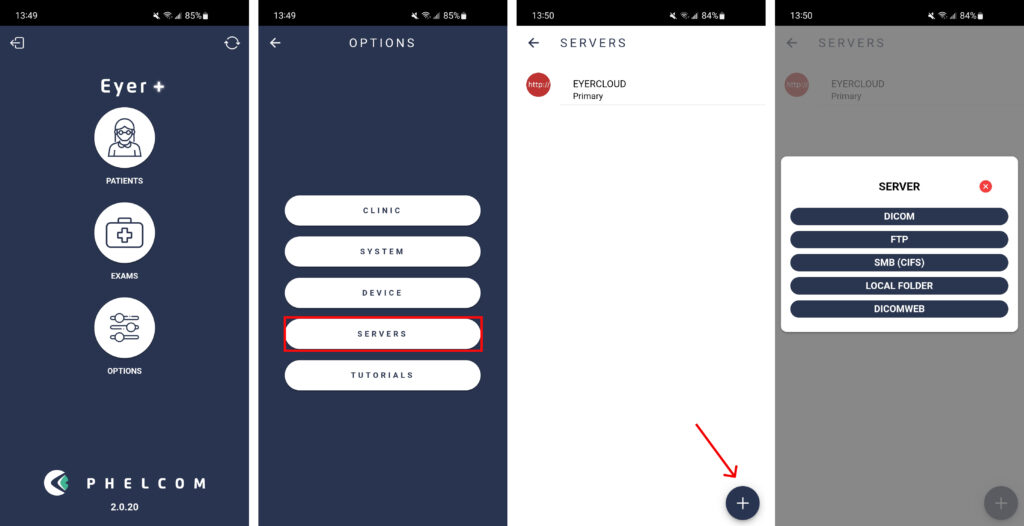
1. Click on “Options”
2. Then select “Servers”
3. Press the “Add Server” button and choose the appropriate server type (e.g., DICOM).
4. Once you’ve selected DICOM, proceed with filling out the required fields.
Input Server information
ACTION: How the Eyer transfers images and choose the best option for you:
* Primary: Main server for your Eyer. EyerCloud is highly recommended.
* Mirror: Automatically sends all data to a second server in addition to the primary one, ensuring redundancy.
* Contingency: Backup server. Images are sent here if the primary server fails, preventing data loss.
* Manual: You must manually choose to send images to server.
* Disabled: The server is not active and won’t be used for any data transfers.
NAME: Insert a name for the server for your internal reference and control.
KEY: This is automatically generated based on the server name. It must be unique and in the format of three uppercase characters (A-Z) and three numbers (0-9).
AE TITLE: This is how the Eyer device will be identified on your server. This information must also be configured on your server so it recognizes that the Eyer will be sending images to it.
Next, you will enter the details for your server, which is where the Eyer device will perform archiving tasks. This is the address where the Eyer will: query, retrive and store images and information.
AET: Insert the AET (Application Entity Title), which is the name used to identify a DICOM server or application on a network.
IP: Insert the Server IP Address.
PORT: Insert the Server Port.
The Worklist is the schedule of exams ready for your Eyer device. To import this data from your server, specify the Worklist source or check the box if the source is the same as your ARCHIVE AE server.
MODALITY: If you plan to use the Worklist feature, you must fill this field with OP (Ophthalmic Photography). This code identifies the specific type of exam; in the case of the Eyer device, the Modality will always be the same.
Finally, Test the Connection!


