

 Português
  Español
  English
Phelcom uses the QuickSupport app for remote technical assistance. To allow us to perform necessary maintenance on your equipment, we kindly ask you to open the App and authorize our connection. Samsung has disabled accessibility in Android 15 and upcoming versions, requiring users to enable them manually. Without these permissions, we cannot remotely access your equipment for maintenance.
Please follow the steps below to update the application, download the required add-on, and then enable the accessibility features. This is the only way we will be able to remotely access your equipment for maintenance:
1) Update the Quick Support version
a. In the main page and find “Play Store” app.
b. Proceed to log in with a personal account.
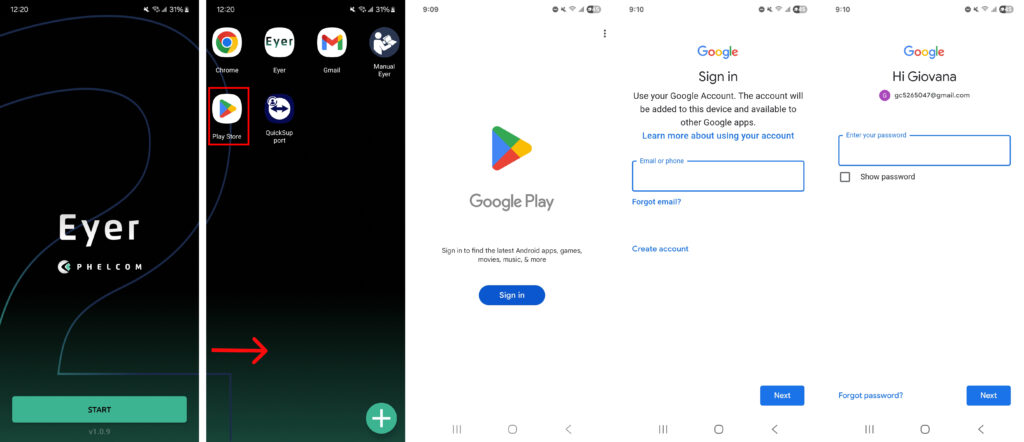
c. Seach in the Google Play Store the app “QuickSupport” and install the latest version.

2) Download TeamViwer Universal Add-On
a. In the Play Store search for “TeamViwer Universal Add-On“
b. Proceed with the download
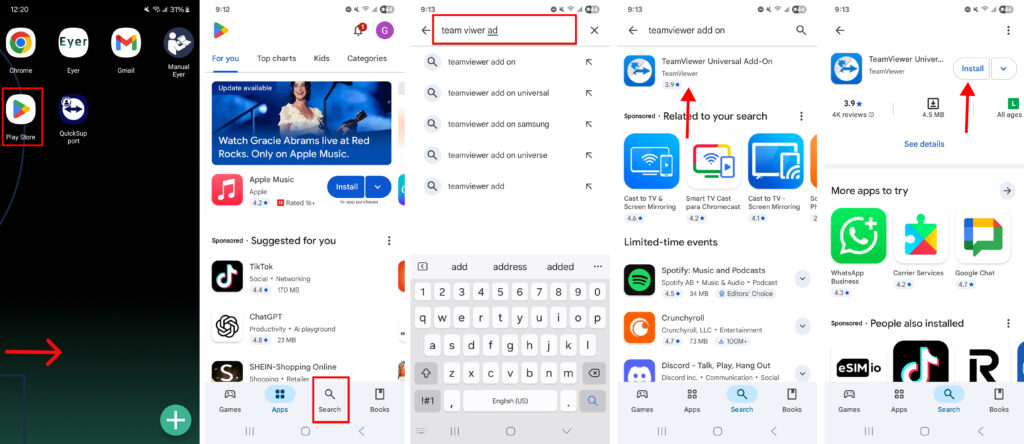
3) Starting QuickSupport and do the permission of accessibility
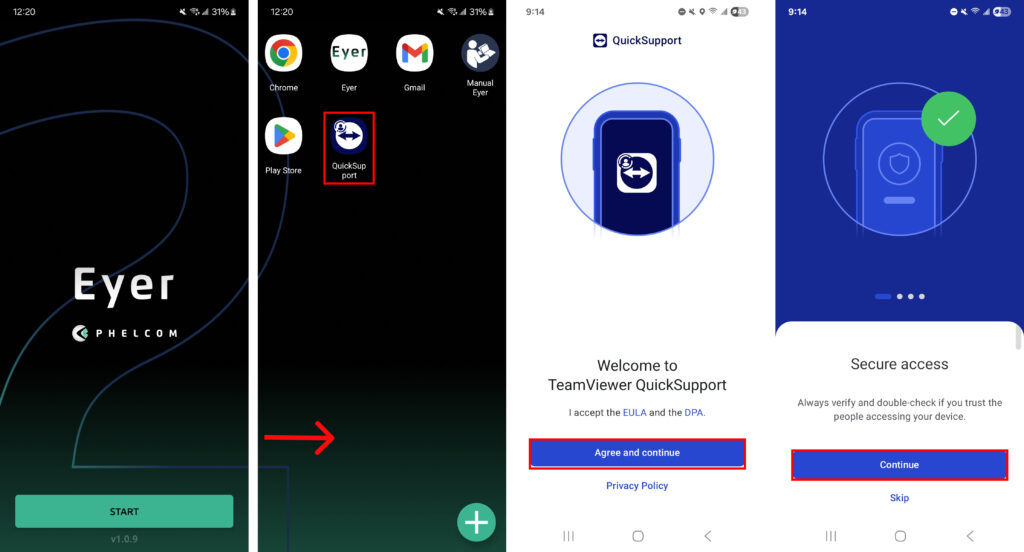
a. Start the app “QuickSupport“
b. Agree the terms and press to continue the process
c. A window informing to enable the Add-on will appear in your screen and press “Enable“
d. Enter in “Installed apps“
e. Allow the permission to “TeamViwer add-on“
f. Come back to QuickSupport app to proceed with the remote access
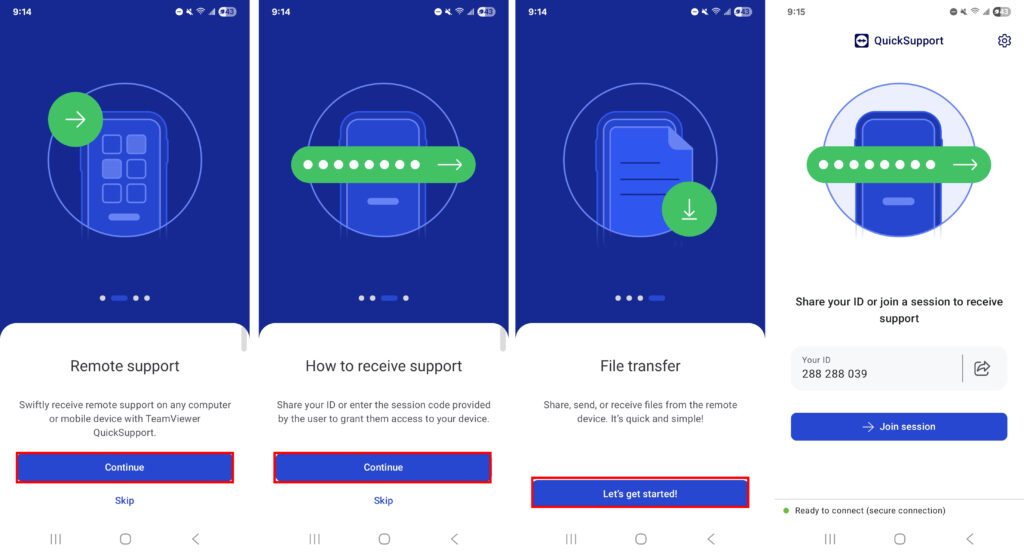
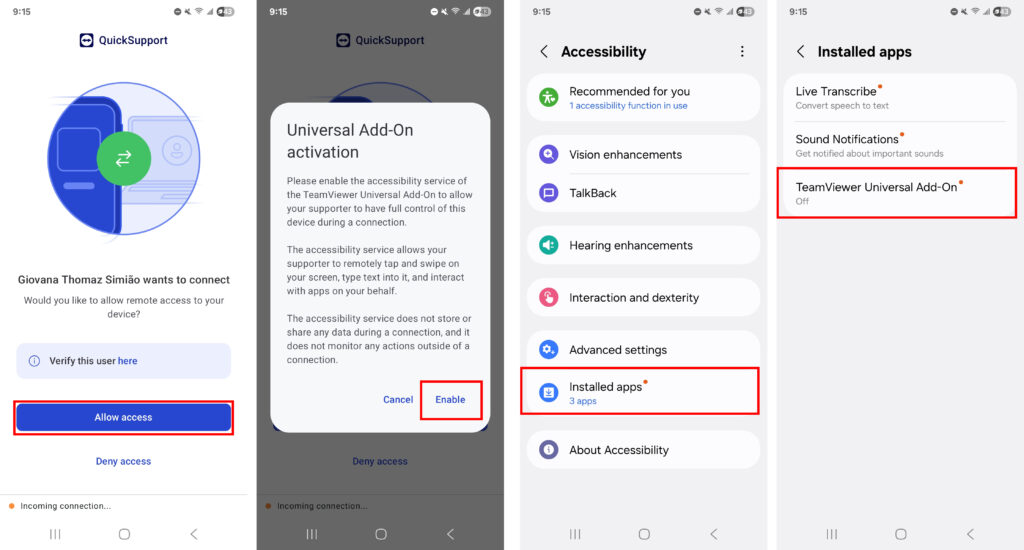

4) What to do when start a remote access?
When technical support asks you to initiate remote access, follow the steps below and make sure the “Accessibility” icon is enabled.


