Português
  Español
  English
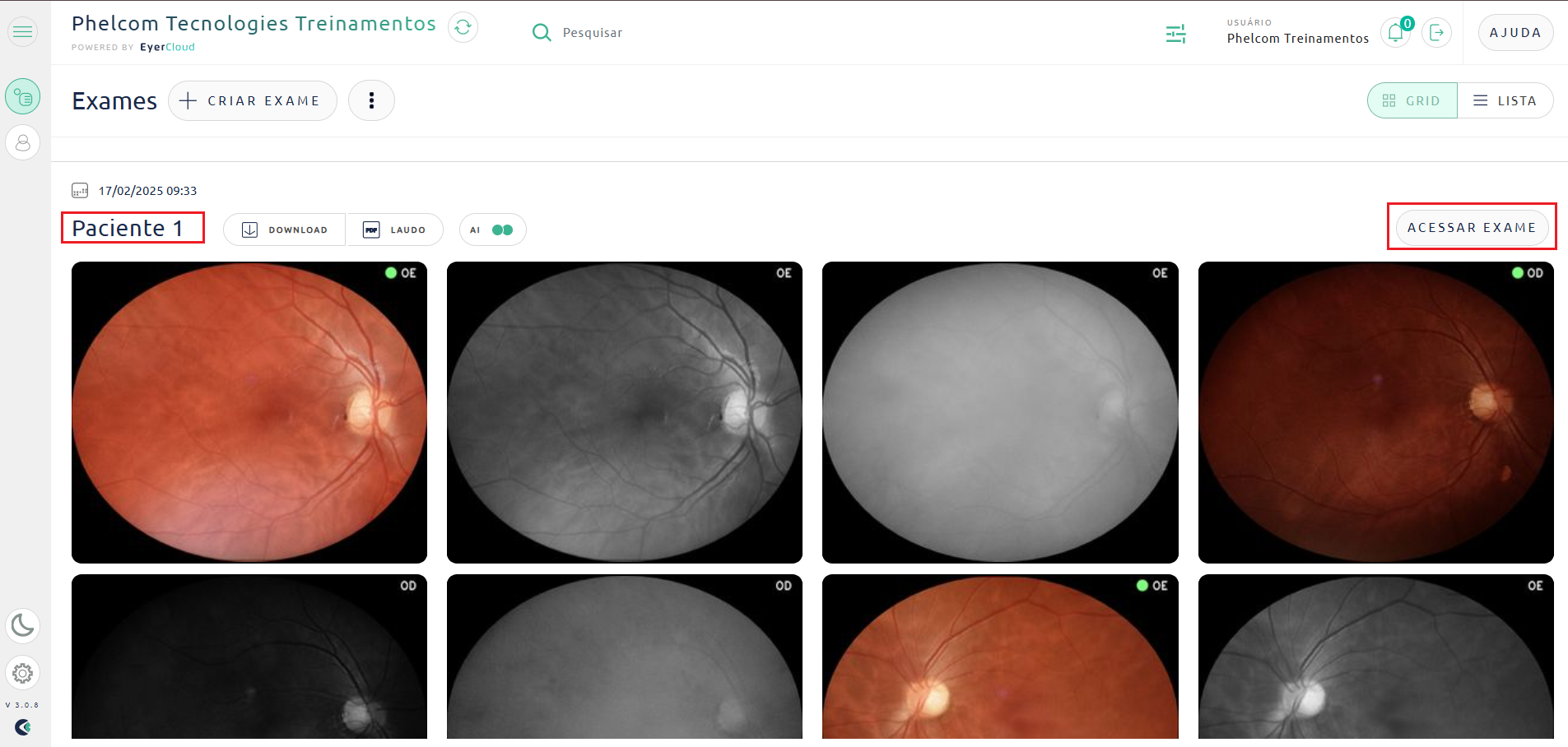
Access your EyerCloud account, select the desired exam, click “Access Exam” and then “Report”.
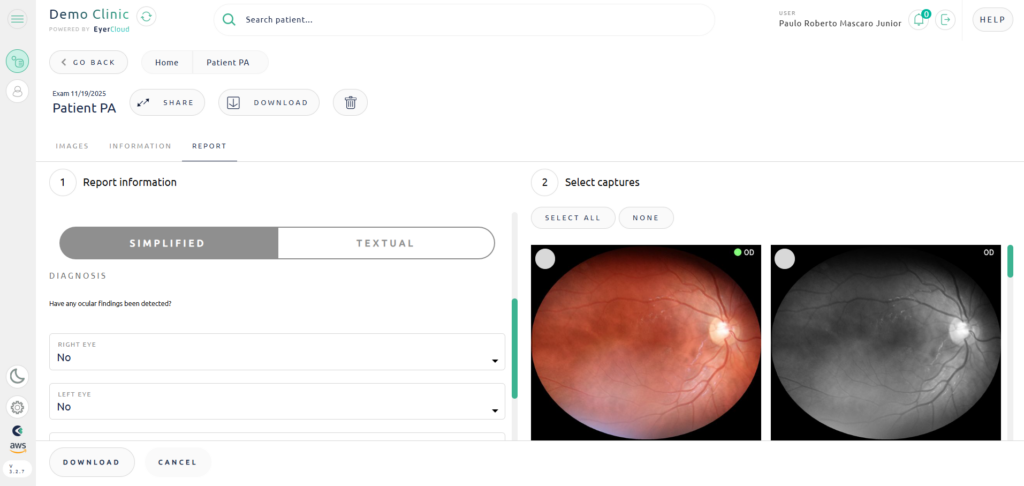
To create a quick and simple report, you can use the simplified option.
A screen for creating the report will be displayed.
Columns: Number of columns in which the images will be organized in the report;
Diagnosis: If the patient has retinal abnormalities, select the corresponding option and enter the identified abnormality;
Observation/Recommendation: Free field to type any additional information.
Select captures: In the upper corner of the images there is a white selection field. When selected, the field will turn green, indicating that the image has been chosen for the report.
To finish, click “Create” or “Update” if you have edited a previously created report.
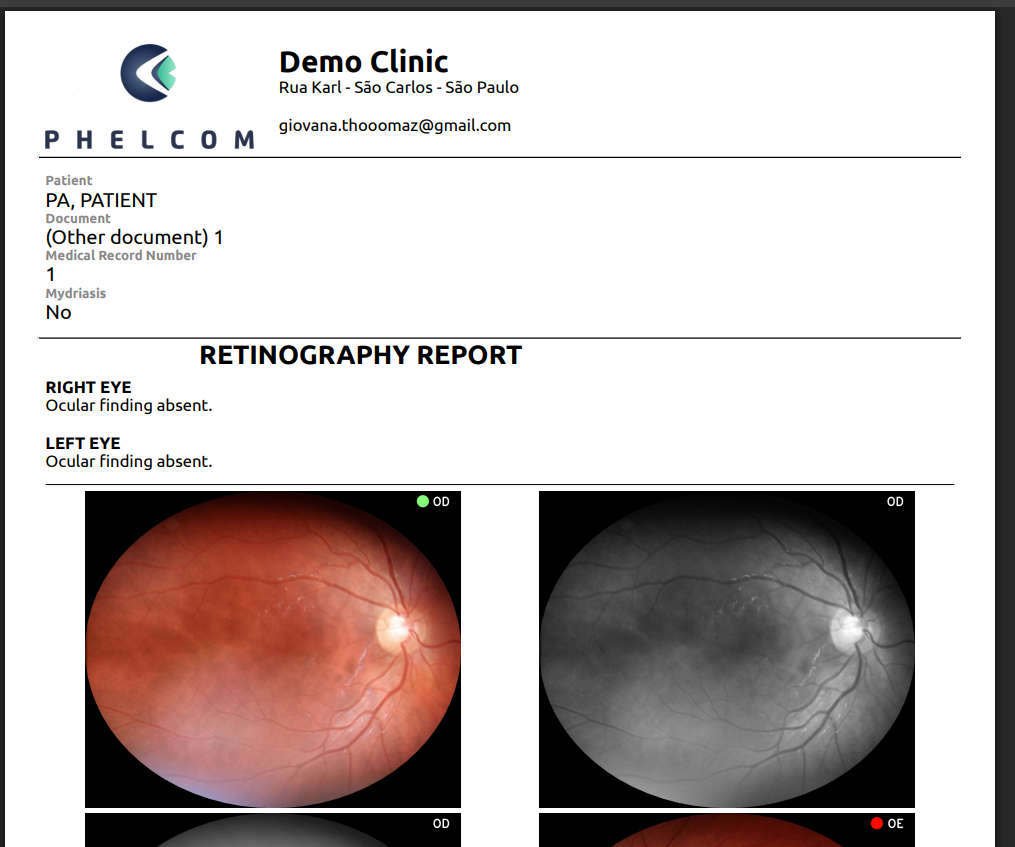
Then simply download the file using the button below.