Volver
HelpCenter

Eyer 2 – Configurando um servidor para compartilhamento de imagens – SMB

Categorías
Eyer 2

All images captured by your Eyer device are securely managed, typically sent to either the Eyercloud system or a user-configured server. If you prefer to store your images on your own server, the Eyer device allows you to create a direct connection.

Here is how you can establish a connection with an external SMB server:

Setting Up the Server Connection

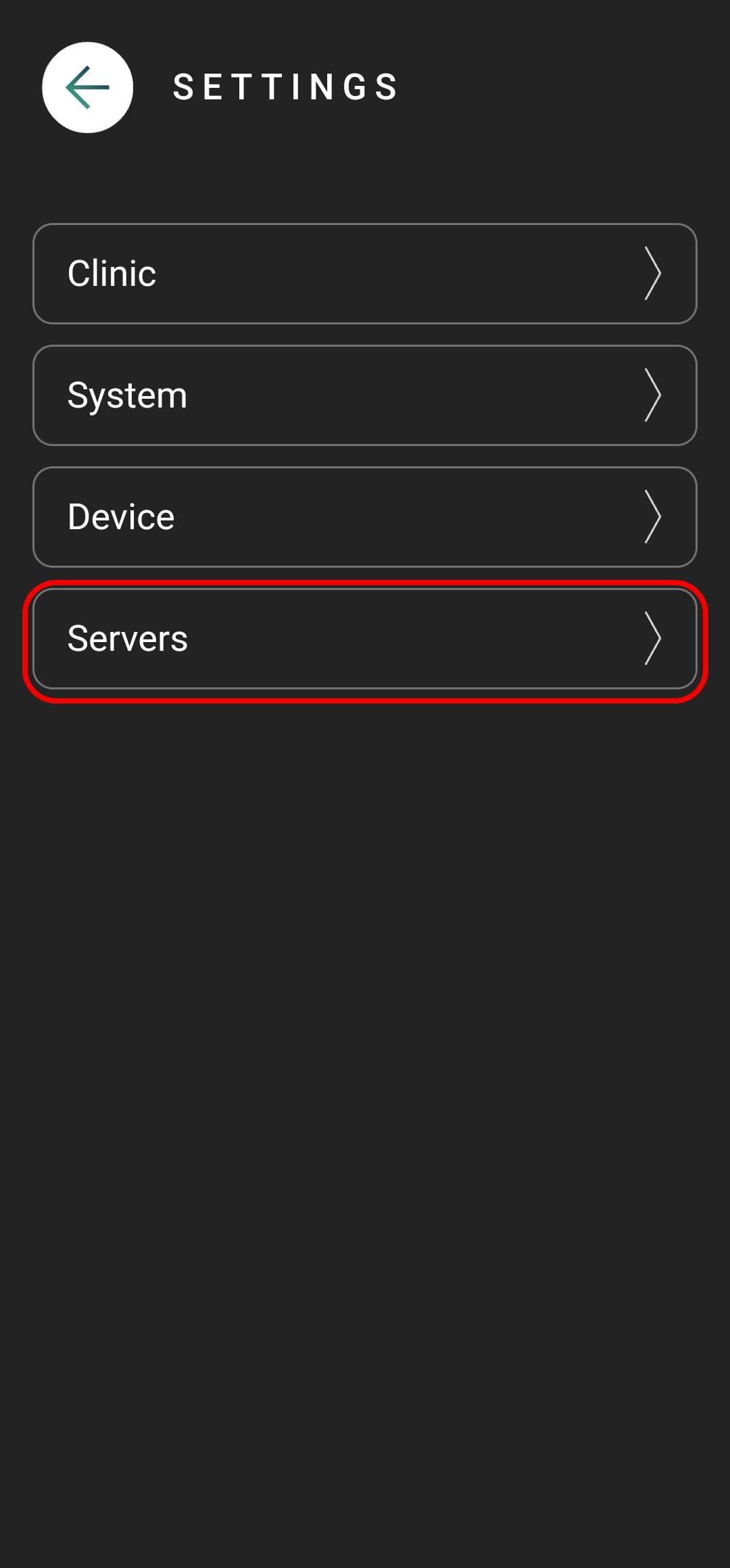
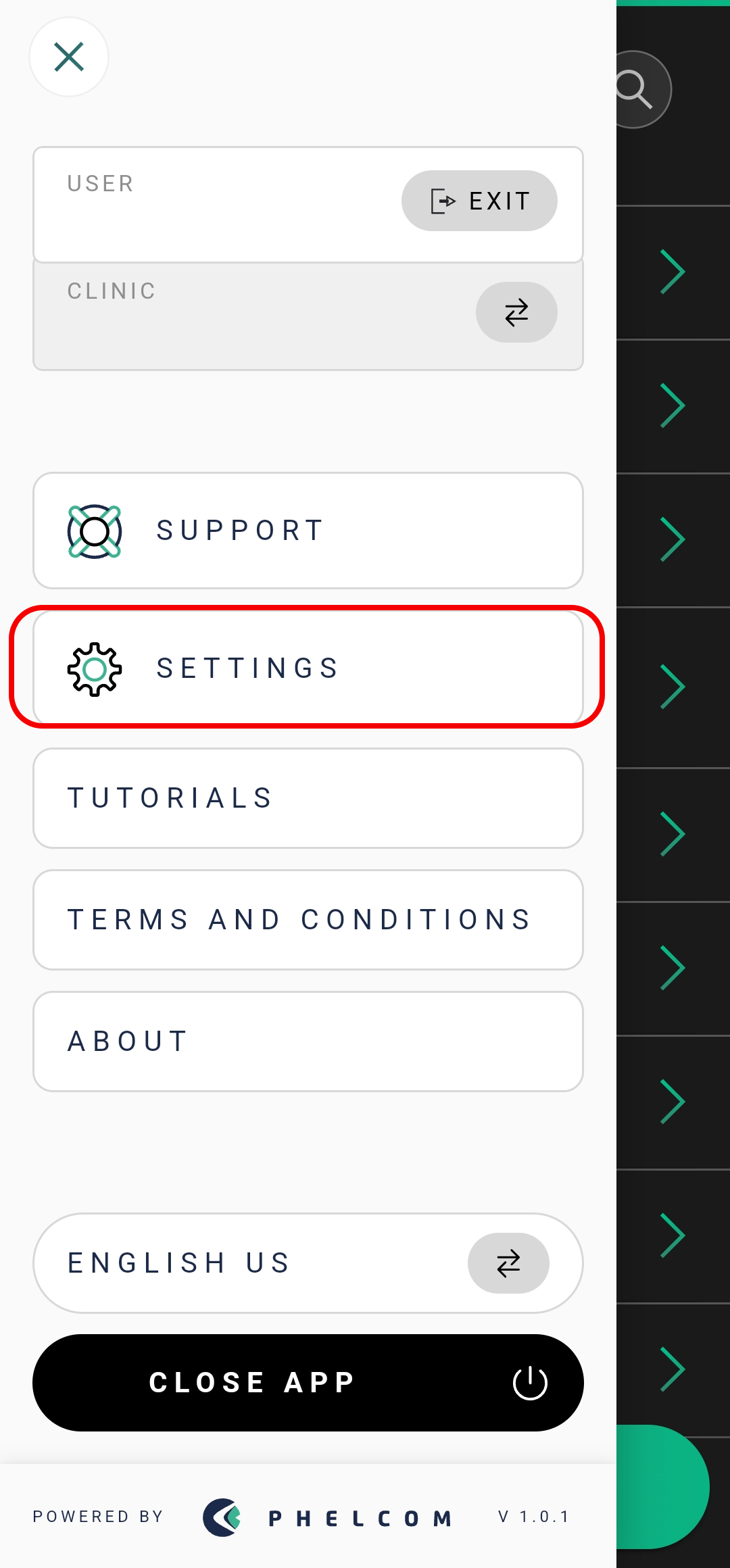
1. Click on “Settings
2. Then select “Servers”
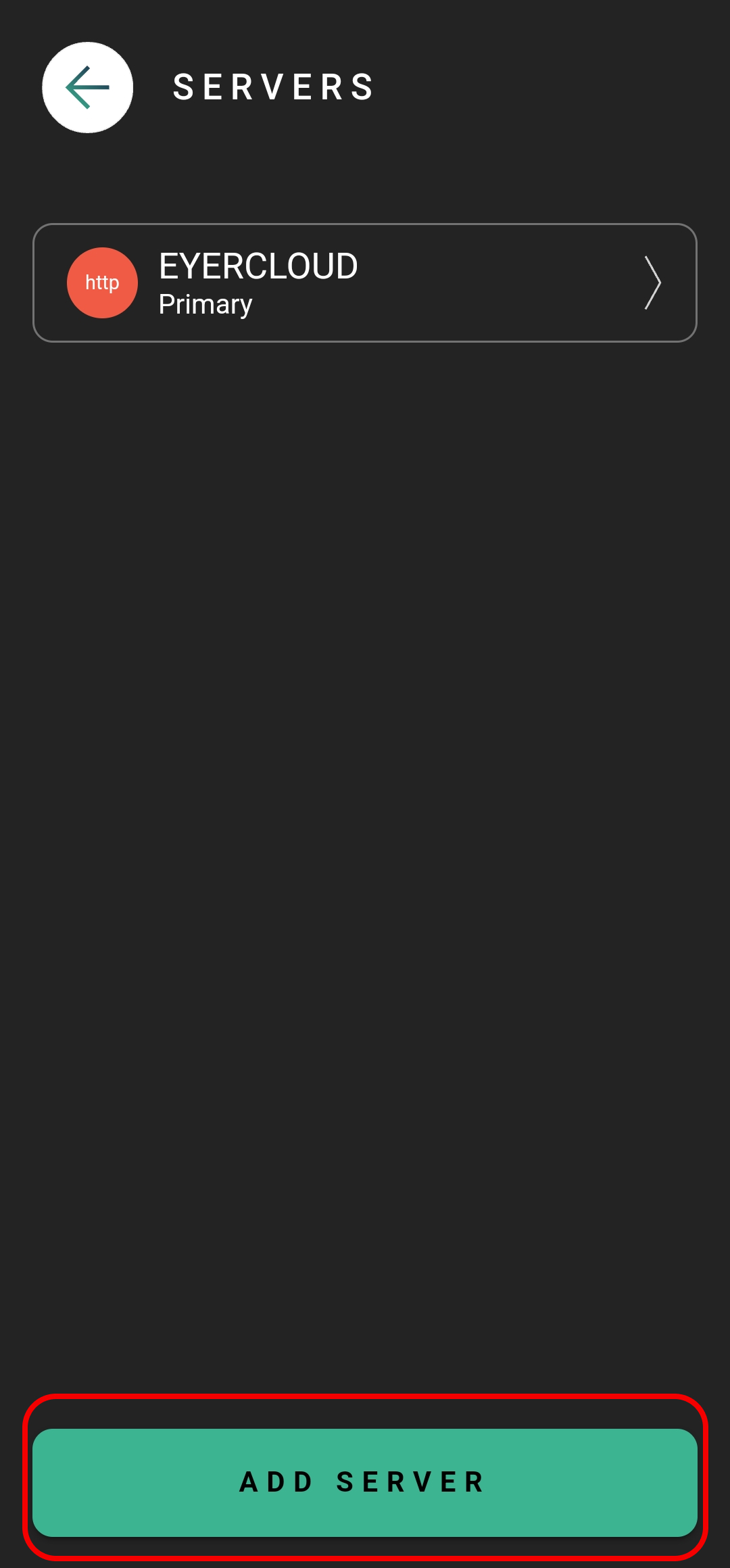
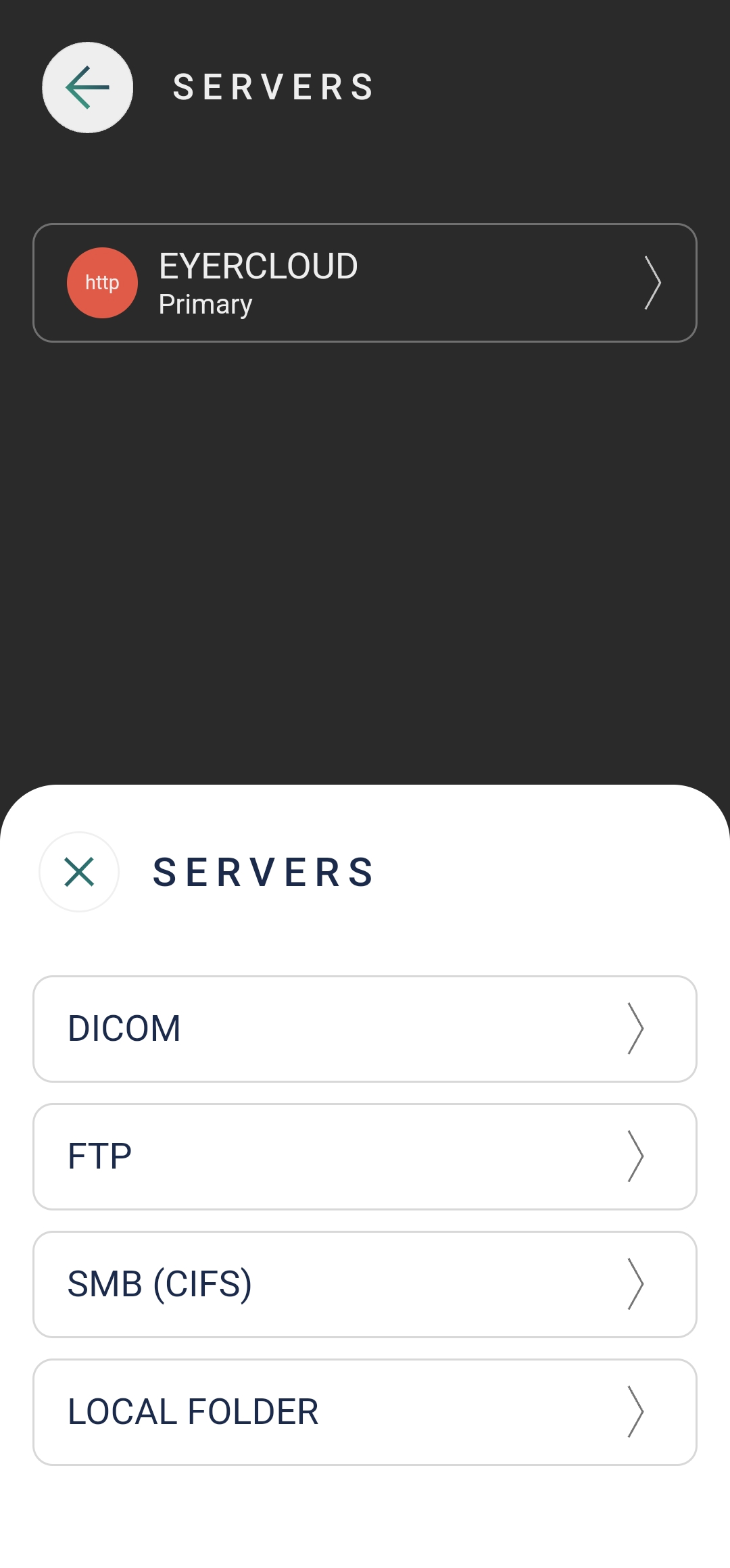
3. Press the “Add Server” button and choose the appropriate server type (e.g., SMB).
4. Once you’ve selected SMB, proceed with filling out the required fields.
Help Server 01 2
Help Server 02 3
Help Server 03 2
Help Server 04 2

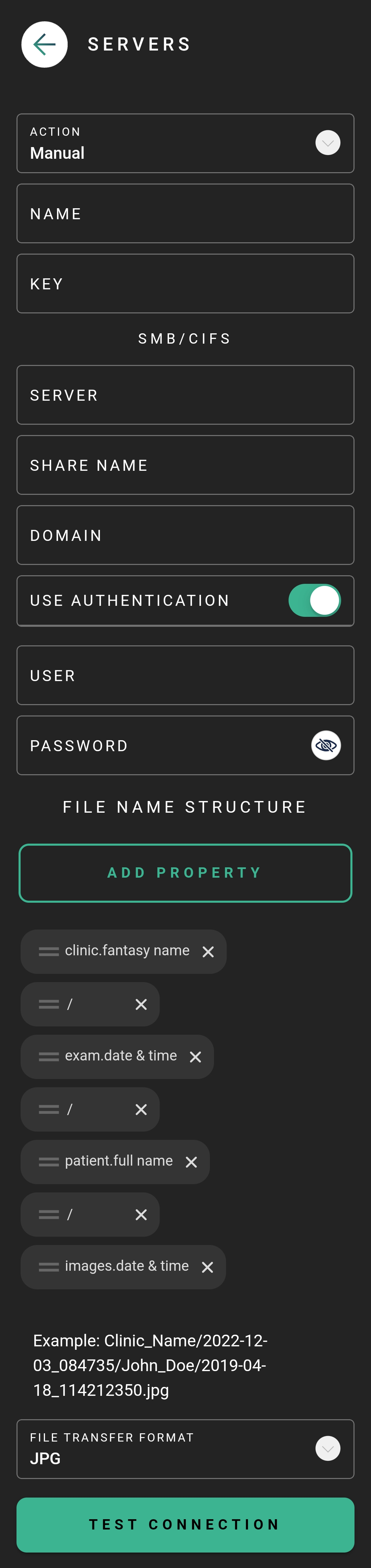
Input Server information

ACTION: How the Eyer transfers images and choose the best option for you:
Primary: Main server for your Eyer. EyerCloud is highly recommended.
Mirror: Automatically sends all data to a second server in addition to the primary one, ensuring redundancy.
Contingency: Backup server. Images are sent here if the primary server fails, preventing data loss.
Manual: You must manually choose to send images to server.
Disabled: The server is not active and won’t be used for any data transfers.

NAME: Insert a name for the server for your internal reference and control.

KEY: This is automatically generated based on the server name. It must be unique and in the format of three uppercase characters (A-Z) and three numbers (0-9).

You’ll need to enter the data for the server where Eyer should send the images. Make sure you have a shared folder prepared beforehand and the necessary credentials ready to input them now.
How to Set Up a shared folder in Windows .
How to Set Up a shared folder in MAC.

SERVER: IP address of the computer that the Eyer is going to connect to – normally IPV4.

SHARE NAME: Enter the «Share name» of the folder configured to receive photos.

DOMAIN: not necessary enter information.

USE AUTHENTICATION: flag if you would like to use authentication

  • User: name of the computer user that is going to connect to Eyer
  • Password: user password used in computer

. Specify your desired file structure.

. Choose the data transfer format DICOM or JPG.

Finally, Test the Connection!
Help Smb0

If there are any issues when creating the connection check our troubleshoot post.

¿Esto fue útil?
No

Soporte técnico

Si necesitas soporte técnico, abre un ticket en nuestro sistema. Nuestro equipo responderá lo antes posible.
Horario de atención: de lunes a viernes de 8:00 a.m. a 6:00 p.m. (hora de Brasilia). Nuestro tiempo medio de respuesta: 2 días

Icon Button Request A QuoteSOLICITAR PRESUPUESTO

Cerrar

Ico Back

Más tarde

SOLICITAR PRESUPUESTO

Complete el siguiente formulario y nos comunicaremos con usted a la brevedad.

    x

    Solicitar un presupuesto

    Al hacer clic en el botón Enviar autorizo a Phelcom a ponerse en contacto conmigo en relación con la solicitud anterior y declaro que he leído y acepto los términos de la Política de Privacidad y las Condiciones de Uso.
    Ico Form Success

    SOLICITAR PRESUPUESTO

    Nuestro equipo se comunicará con usted en breve.

    Cerca

    …completa tu información

      By clicking the Complete button I allow Phelcom to contact me regarding the above request and I declare that I have read and accept the terms of Privacy Policy and Terms of Use.
      Ico Back

      Más tarde

      Ico Form Success

      Gracias por completar tu información.

      Cerca

      Ico Back

      Más tarde

      Solicita y comienza TU PRUEBA DE CONDUCCIÓN

      Por favor complete el formulario a continuación y nos comunicaremos con usted.

        x

        Solicitar Orçamento

        Ao clicar em Solicitar, concordo com a Política de Privacidade e os Termos de Uso, permito que a Phelcom me contate e reconheço que o Eyer é um dispositivo médico (Anvisa classe II) exigindo a supervisão de um profissional com CRM para uso e interpretação das imagens.
        Ico Form Success

        ¡Gracias!

        Nuestro equipo comercial se pondrá en contacto contigo en breve para finalizar el proceso.

        Cerca

        Ico Back

        Más tarde

        Pida mas información

        Por favor complete el formulario a continuación y nos comunicaremos con usted.

          x

          Solicitar EyerMaps

          Ao clicar em Solicitar, concordo com a Política de Privacidade e os Termos de Uso, permito que a Phelcom me contate e reconheço que o Eyer é um dispositivo médico (Anvisa classe II) exigindo a supervisão de um profissional com CRM para uso e interpretação das imagens.
          Ico Form Success

          ¡Gracias!

          Nuestro equipo comercial se pondrá en contacto con usted en breve para finalizar el proceso. Nuestro equipo comercial se pondrá en contacto con usted en breve para finalizar el proceso.

          Cerca